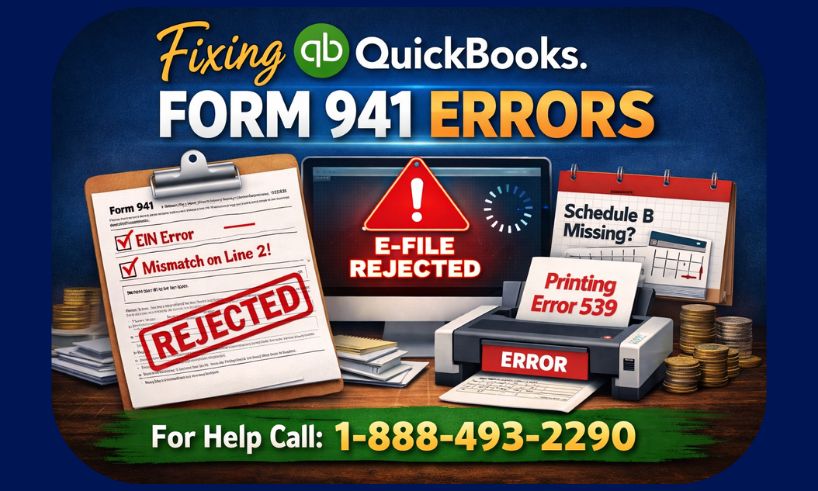
Managing payroll can be stressful, especially when it comes to filing Form 941, the Employer’s Quarterly Federal Tax Return. QuickBooks, one of the most widely used accounting software, helps simplify payroll and tax reporting. However, errors on Form 941—whether on Desktop or Online versions—can lead to IRS rejections, filing delays, or penalties.
In this guide, we’ll explore the most common QuickBooks Form 941 issues, their causes, and step-by-step solutions to help you file accurately every time.
Read Also :- How to Find 941 Report in QuickBooks Desktop?
What is Form 941 and Why Accuracy Matters
Form 941 is filed quarterly to report federal income tax withheld, Social Security, and Medicare taxes for employees. The IRS relies on the information provided in Form 941 to track tax liabilities. Errors in this form can result in:
- Payroll discrepancies
- E-file rejections
- IRS penalties and fines
- Delayed refunds
QuickBooks automates most payroll calculations, but mistakes can occur due to data entry errors, outdated payroll tables, or software glitches. Understanding common errors is the first step toward solving them.
Common QuickBooks Form 941 Errors and Their Causes
We’ve categorized the errors to make troubleshooting easier.
1. Payroll & Tax Calculation Issues
Line 2 Does Not Match Payroll Summary
Cause: Payroll summary reports may include adjustments that are not reflected in Form 941.
Solution:
- Reconcile your payroll summary with QuickBooks Form 941 report.
- Verify that all wages subject to withholding are included.
- Correct any discrepancies in employee records.
Line 12 and Line 16 Mismatch
Cause: Incorrect tax calculations or missing entries.
Solution:
- Check the total Social Security and Medicare taxes.
- Ensure employee and employer portions are accurately recorded.
- Update QuickBooks payroll tax table if necessary.
Social Security and Medicare Tax Mismatch
Cause: Outdated tax tables or incorrect employee info.
Solution:
- Navigate to Employees → Payroll Center → Update Tax Table.
- Verify employee Social Security numbers and wage bases.
- Recalculate payroll if needed.
Incorrect Number of Employees
Cause: Missing employee entries or duplicate records.
Solution:
- Review active employee list in QuickBooks.
- Remove duplicates and add missing employees before filing.
2. Filing & E-File Issues
941 Return Being Filed Too Early
Cause: Filing before the quarter ends or before payroll data is updated.
Solution:
- Wait until the quarter is complete.
- Verify payroll summary and tax liability before filing.
EIN Red on Form 941
Cause: Incorrect Employer Identification Number (EIN).
Solution:
- Go to Company → My Company and verify your EIN.
- Correct any discrepancies and update the form before filing.
941 E-File Rejected
Cause: EIN issues, mismatched tax amounts, or missing information.
Solution:
- Review the rejection notice.
- Correct the EIN, employee counts, and line totals.
- Resubmit the form.
941 Not Showing Up in Filings
Cause: Software glitches or incomplete payroll updates.
Solution:
- Refresh QuickBooks filings.
- Check filters and date ranges in the payroll center.
- Ensure payroll is fully processed before filing.
Duplicate Transactions on Form 941
Cause: Re-entered payroll or imported data errors.
Solution:
- Review payroll reports for duplicates.
- Delete or correct duplicate entries in QuickBooks.
3. Form & Schedule Issues
Schedule B Missing on Form 941 Desktop
Cause: Schedule B is required for semiweekly tax depositors.
Solution:
- Enable Schedule B in Forms → 941 → Customize Form.
- Verify all deposit amounts and dates.
Form 941 Not Opening / Review Screen Stuck
Cause: Corrupt QuickBooks files or temporary software glitches.
Solution:
- Restart QuickBooks.
- Rebuild your company file (File → Utilities → Rebuild Data).
- Open Form 941 again.
Printing Errors (e.g., Error 539)
Cause: Printer setup or QuickBooks PDF component issues.
Solution:
- Update printer drivers.
- Use Print to PDF option in QuickBooks.
- Reinstall QuickBooks PDF printer component if needed.
Cannot Print Form 941 from Desktop
Cause: Permissions or software issues.
Solution:
- Run QuickBooks as Administrator.
- Ensure default printer is correctly set.
- Check for PDF conflicts or firewall restrictions.
4. QuickBooks Software & Authentication Issues
Online Authentication Ticket Mismatch / Login Errors
Cause: Security token expired or invalid credentials.
Solution:
- Log out and log back in to QuickBooks Online.
- Reset authentication tickets.
- Verify your Intuit ID and password.
Form 941 Does Not Match Liability Report
Cause: Payroll liabilities not fully updated.
Solution:
- Reconcile payroll reports with Form 941.
- Correct any discrepancies in tax liability records.
Payroll Tax Table Out of Date
Cause: Missing updates for the latest federal tax rates.
Solution:
- Update tax tables in QuickBooks Employees → Get Payroll Updates → Update.
Blocked Federal Forms (CARES Act or other restrictions)
Cause: Certain forms may be blocked due to government updates.
Solution:
- Check Intuit/QuickBooks alerts for federal form releases.
- Download the latest updates and patches.
5. Correcting 941 Errors After Switching to QuickBooks Online
Switching from Desktop to Online can introduce data mismatches.
Steps to Fix Errors:
- Export payroll data from Desktop.
- Import data into QuickBooks Online carefully.
- Reconcile each Form 941 line with payroll summary.
- Correct discrepancies before e-filing.
Filing Form 941-X:
- Used to correct previously submitted 941 forms.
- Update incorrect lines in QuickBooks.
- Submit electronically or by mail as instructed by the IRS.
6. Preventing Future QuickBooks Form 941 Errors
- Regularly update QuickBooks: Tax tables and payroll updates prevent mismatches.
- Reconcile payroll reports: Ensure every employee’s tax, wages, and deductions are accurate.
- Backup company files: Prevent data loss and corruption.
- Validate employee data: Names, Social Security numbers, and EINs.
- Check filings before submission: Ensure all forms match payroll summaries.
7. Frequently Asked Questions (FAQ)
Often due to unprocessed payroll, duplicate entries, or outdated tax tables. Reconcile payroll reports and update tables.
Verify EIN in Company → My Company, correct it in QuickBooks, and resubmit.
Yes, by using the Print to PDF option and ensuring printer drivers are updated.
Export incorrect payroll data, update the 941-X lines in Online, reconcile totals, and submit electronically.
Schedule B is only required for semiweekly depositors. Enable it in Forms → Customize Form → Schedule B.
Conclusion
Filing Form 941 correctly is crucial to staying compliant with federal payroll regulations. QuickBooks makes payroll management easier, but errors—whether from mismatched lines, missing schedules, printing issues, or software glitches—can occur.
By identifying common issues, applying step-by-step solutions, and taking preventive measures, you can avoid costly mistakes and ensure smooth, error-free Form 941 filings.
Remember to update tax tables, reconcile payroll, and verify all employee and company data before filing. And if errors persist, consult QuickBooks support or a certified payroll professional for guidance.