
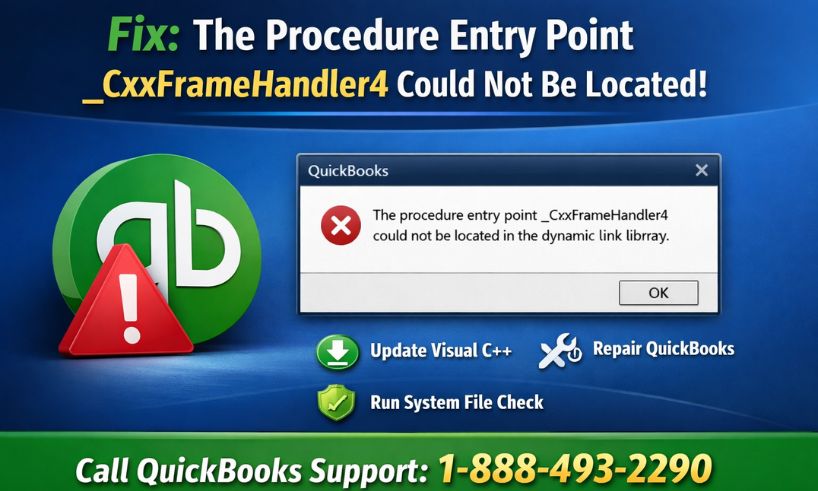
QuickBooks users sometimes encounter unexpected technical issues after installing updates, and one of the most frustrating problems is the error message “The procedure entry point _CxxFrameHandler4 could not be located.” This error usually appears immediately after updating QuickBooks Desktop or Windows and prevents the software from opening properly. If you started seeing this message after a recent update, you are not alone. Many users experience this issue due to system component conflicts rather than problems with company files.
This guide explains what the error means, why it happens, and the complete step-by-step solutions to fix it safely.
Read Also : How to Fix QuickBooks Not Updating
What Is the _CxxFrameHandler4 Error in QuickBooks?
The _CxxFrameHandler4 error is a Windows runtime library issue. It occurs when QuickBooks attempts to load a required Microsoft Visual C++ component but cannot find the correct version installed on the computer.
In simple terms, QuickBooks depends on Microsoft system files to run. When an update replaces, removes, or corrupts these files, QuickBooks fails to start and shows the entry-point error message.
This problem commonly appears:
- After a QuickBooks Desktop update
- Following a Windows update
- When Visual C++ Redistributable files are damaged
- If system DLL files are missing or outdated
Why Does This Error Occur After Updating QuickBooks?
QuickBooks updates often introduce new dependencies that require updated Microsoft runtime libraries. If your computer still uses an older Visual C++ package, QuickBooks cannot locate the required function called _CxxFrameHandler4, which exists only in newer runtime versions.
Common causes include:
- Outdated Microsoft Visual C++ Redistributables
- Corrupted QuickBooks installation files
- Interrupted update installation
- Windows system file corruption
- Conflicts between 32-bit and 64-bit components
Symptoms of the Error
Users experiencing this issue typically notice the following:
- QuickBooks fails to open after update
- Error appears immediately at launch
- Application crashes instantly
- Windows shows DLL or entry point errors
- QuickBooks icon opens briefly then closes
Solution 1: Install Latest Microsoft Visual C++ Redistributables
The most effective fix is reinstalling Microsoft Visual C++ packages.
First, close QuickBooks completely. Open Control Panel and go to Programs and Features. Locate all Microsoft Visual C++ Redistributable versions installed on your system.
Uninstall the following versions if present:
- Microsoft Visual C++ 2015
- Microsoft Visual C++ 2017
- Microsoft Visual C++ 2019
- Microsoft Visual C++ 2022
Restart your computer after uninstalling.
Next, download and install the latest supported versions directly from Microsoft’s official website. Install both:
- x64 version
- x86 version
Restart the system again and open QuickBooks.
In most cases, this resolves the error immediately.
Solution 2: Repair QuickBooks Desktop Installation
If the issue persists, repairing QuickBooks program files can restore missing components.
Open Control Panel and select Programs and Features. Choose QuickBooks Desktop from the list and click Uninstall/Change. Select the Repair option and follow on-screen instructions.
Once completed, restart your computer and launch QuickBooks again.
Solution 3: Run QuickBooks Tool Hub
QuickBooks Tool Hub is designed to fix installation and update problems automatically.
Download the latest QuickBooks Tool Hub version and install it. Open the tool and select Installation Issues. Then run Quick Fix My Program followed by QuickBooks Install Diagnostic Tool.
Allow the scan to complete fully before reopening QuickBooks.
Solution 4: Perform Windows System File Repair
Sometimes Windows system files become corrupted during updates.
Open Command Prompt as Administrator and run:
sfc /scannow
This command scans and repairs damaged Windows files required by QuickBooks.
After the scan finishes, restart your computer.
Solution 5: Clean Install QuickBooks Desktop
If none of the above methods work, performing a clean installation is recommended.
Uninstall QuickBooks Desktop from Control Panel. Rename installation folders manually or use the Clean Install Tool available in QuickBooks Tool Hub. Reinstall QuickBooks using your original license information and update to the latest release.
This removes corrupted program files causing the entry point error.
Preventing the Error in the Future
To avoid this issue after future updates, follow these best practices:
- Keep Windows fully updated
- Install Microsoft Visual C++ updates regularly
- Avoid interrupting QuickBooks updates
- Restart the computer after major updates
- Maintain regular system backups
When Should You Contact QuickBooks Support?
If the error continues even after reinstalling Visual C++ and repairing QuickBooks, deeper system conflicts may exist. These cases may involve Windows registry damage or security software interference requiring advanced troubleshooting.
You should contact QuickBooks experts if:
- Error appears repeatedly after reinstall
- Multiple DLL errors occur
- QuickBooks crashes instantly
- Update installation fails repeatedly
📞 Call QuickBooks Support Now: +1-888-493-2290
Certified experts can diagnose and fix update-related errors quickly.
Final Thoughts
The “_CxxFrameHandler4 could not be located” error in QuickBooks usually occurs because of missing or outdated Microsoft Visual C++ runtime files after an update. While the message looks technical, the solution is typically straightforward — reinstall required Windows components, repair QuickBooks, and ensure system files remain intact.
By following the solutions outlined above step-by-step, most users can restore QuickBooks functionality without data loss and resume business operations smoothly.