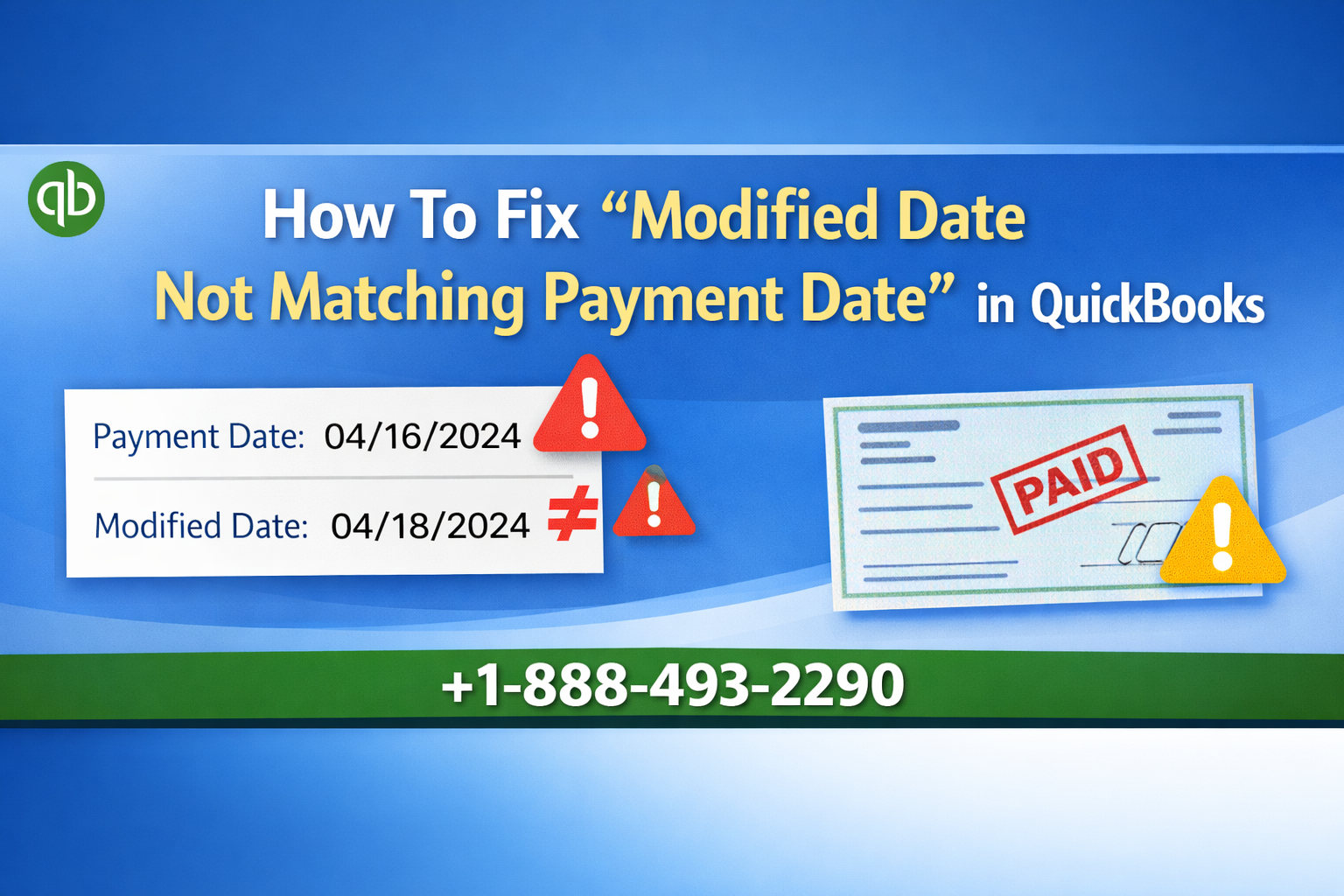
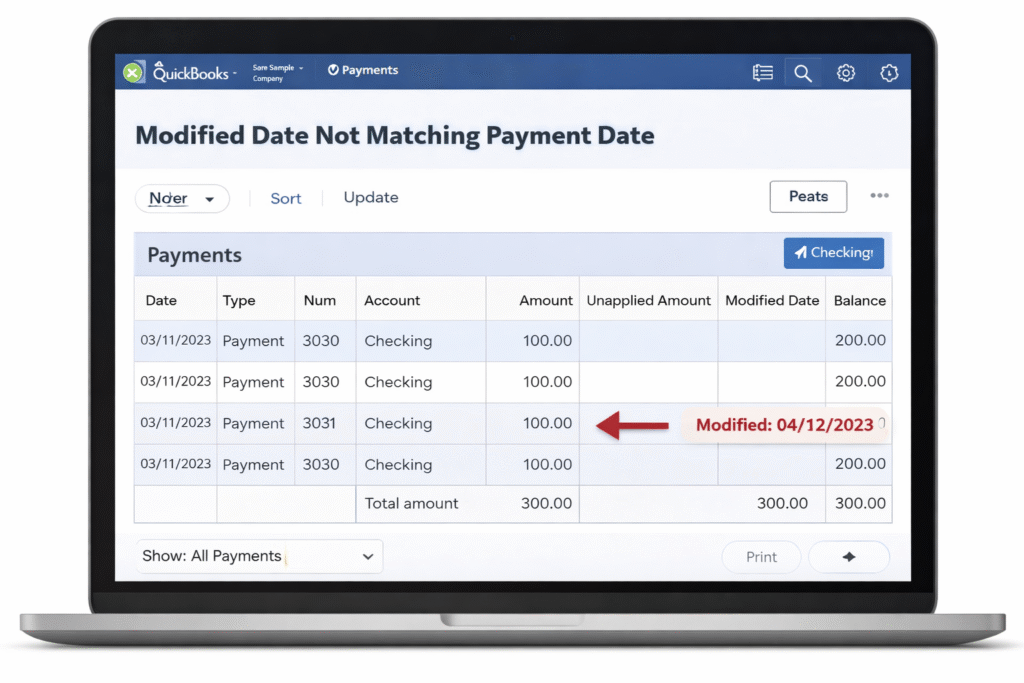
QuickBooks users sometimes notice that reports show a Modified Date that doesn’t match the Payment Date after recording or editing a payment. This situation can create confusion during reconciliation, auditing, or financial reporting because transactions appear updated on dates different from when payments were actually received.
If you are facing this issue, don’t worry — it is usually not a system error, but rather how QuickBooks tracks transaction history and report activity. In this guide, you’ll learn why the problem happens and how to fix or interpret it correctly.
What Does “Modified Date Not Matching Payment Date” Mean?
In QuickBooks, every transaction contains multiple timestamps:
- Payment Date – The date the payment was recorded or received.
- Modified Date – The last time the transaction was edited, updated, or affected by another action.
When a report shows different dates, it means the transaction was changed after the original payment entry, not that the payment itself occurred on the wrong day.
QuickBooks automatically updates the Modified Date whenever edits occur, including small adjustments like saving, applying payments, or syncing updates.
Read Also:- Run and Customize Reports in QuickBooks Desktop
Why This Issue Happens in QuickBooks
Understanding the causes helps you avoid unnecessary troubleshooting.
1. Transaction Edits After Payment
If someone edits an invoice, payment, memo, or linked transaction, QuickBooks updates the Modified Date automatically.
Examples include:
- Changing customer details
- Editing amounts or notes
- Reapplying payments
- Updating categories
Even minor changes trigger a modification timestamp.
2. Linked Transactions Update Automatically
QuickBooks connects invoices, payments, deposits, and reports. When one linked item changes, related transactions may also update.
As a result, reports display a newer Modified Date even though the payment date remains unchanged.
3. Report Settings or Accounting Method
Some reports behave differently depending on accounting method:
- Accrual basis records income when invoices are created.
- Cash basis records income when payment is received.
Switching report views may make dates appear inconsistent even though records are correct.
4. Imported or Synced Transactions
Bank feeds, integrations, or syncing tools may update transactions automatically, which refreshes the Modified Date without altering the payment itself.
How To Fix “Modified Date Not Matching Payment Date” in QuickBooks
Follow these solutions step-by-step.
Solution 1: Check the Audit Log (Recommended)
The Audit Log shows exactly what changed and when.
Steps:
- Open Settings ⚙️
- Select Audit Log
- Search for the affected transaction
- Review modification history
This confirms whether the transaction was edited after payment.
Solution 2: Verify the Payment Transaction
Sometimes users mistakenly review the invoice instead of the payment record.
Do this:
- Open the customer invoice.
- Click the linked payment.
- Confirm the Payment Date field.
If correct, no fix is required — reporting behavior is normal.
Solution 3: Customize the Report Columns
Many reports include Modified Date by default, which can cause confusion.
Steps:
- Open the report.
- Select Customize.
- Go to Columns.
- Remove Modified Date or add Payment Date column.
- Run the report again.
This ensures you see the correct payment timeline.
Solution 4: Switch Accounting Method (If Needed)
If income appears under the wrong date:
- Open the report.
- Locate Accounting Method.
- Toggle between:
- Cash Basis
- Accrual Basis
- Refresh the report.
QuickBooks calculates reporting dates differently depending on this setting.
Solution 5: Avoid Editing Closed Transactions
Editing older transactions updates the Modified Date and may affect reports.
Best practices:
- Lock closed accounting periods.
- Limit editing permissions.
- Use adjusting entries instead of edits.
How To Prevent Date Mismatch Issues in the Future
Follow these QuickBooks best practices:
- ✔ Finalize transactions before reconciliation
- ✔ Restrict user editing permissions
- ✔ Lock prior accounting periods
- ✔ Review Audit Log regularly
- ✔ Use consistent accounting method settings
These steps help maintain clean and accurate reporting.
Important Note: This Is Usually Not a QuickBooks Error
Many users assume this is a bug, but QuickBooks intentionally tracks modification history for transparency and auditing purposes. The Modified Date simply records when a change occurred, not when payment was received.
Understanding this difference prevents unnecessary corrections and keeps financial reports accurate.
When You Should Actually Fix It
You should investigate further if:
- Payment date itself changed incorrectly
- Reports show incorrect balances
- Reconciliation differences appear
- Audit Log shows unexpected edits
Otherwise, mismatched dates alone are normal system behavior.
Final Thoughts
The “Modified Date Not Matching Payment Date” message in QuickBooks is typically caused by transaction updates rather than accounting errors. By reviewing the Audit Log, verifying payment entries, and customizing reports correctly, you can quickly resolve confusion and maintain accurate financial records.
Instead of changing payment data, focus on understanding how QuickBooks tracks edits and report timelines. Once configured properly, your reports will reflect the correct payment information without discrepancies.
❓ Frequently Asked Questions (FAQs)
The Modified Date changes whenever a transaction is edited or updated, while the Payment Date shows when the payment was originally recorded. This difference is normal and helps QuickBooks maintain an audit trail.
No. In most cases, this is not an error. QuickBooks automatically updates the Modified Date whenever changes are made to invoices, payments, or linked transactions.
You can review the Audit Log in QuickBooks. Go to Settings → Audit Log and locate the transaction to see who made changes and when they were made.
No, the Modified Date is system-generated and cannot be edited manually. It exists to ensure accurate tracking of transaction history.
When you edit an invoice or any linked transaction, QuickBooks automatically updates the modification timestamp to reflect the latest activity.
You can customize reports to display the Payment Date instead of the Modified Date or remove the Modified Date column entirely.
Yes. Switching between Cash Basis and Accrual Basis can change how income appears in reports, which may make dates look different.
Follow these best practices:
1. Avoid editing reconciled transactions
2. Lock closed accounting periods
3. Limit user permissions
4. Review Audit Logs regularly