Including Important Info on QuickBooks 2023 Discontinuation
QuickBooks Desktop continues to be one of the most widely used accounting solutions for small and medium-sized businesses. However, Intuit regularly discontinues support for older versions to focus on newer releases and enhanced services.
Most recently, QuickBooks Desktop 2023 is scheduled to be discontinued after May 31, 2026. After that date, support, services like bank feeds, payroll, and credit card processing, as well as security updates, will no longer be available unless you upgrade.
This guide walks you through why upgrading is crucial, how to upgrade your QuickBooks version to 2024, and how to prepare your data safely.
Why You Should Upgrade to QuickBooks Desktop 2024
1. Support and Services Will End for 2023
Intuit’s official policy states that QuickBooks Desktop 2023 will stop receiving support and connected services after May 31, 2026. If you continue using 2023 past this date:
- You will lose live technical support from Intuit.
- You’ll lose access to integrated services such as payroll, online banking, credit card payments, and more.
- Security updates will no longer be provided, increasing risk exposure.
Even if the core program may still open company files, essential services will stop functioning.
2. New Features & Security Enhancements
QuickBooks Desktop 2024 includes performance improvements, updated security features, and extended compatibility with modern operating systems.
- Better handling of large company files
- Ongoing compatibility with Windows updates
- New reporting and workflow enhancements
3. Extended Lifecycle for QuickBooks 2024
While QuickBooks Desktop 2023 support ends in 2026, QuickBooks Desktop 2024 is supported longer, giving you more time before the next upgrade is needed — typically into May 2027 or beyond for active subscribers.
Step-by-Step: How to Upgrade to QuickBooks Desktop 2024
There are multiple ways to upgrade, depending on your situation:
Estimate Cost : 00 USD
Time Needed : 01 hours 05 minutes
Learn how to safely upgrade older QuickBooks Desktop versions to QuickBooks Desktop 2024 before QuickBooks 2023 services are discontinued.
Back Up Your QuickBooks Company File
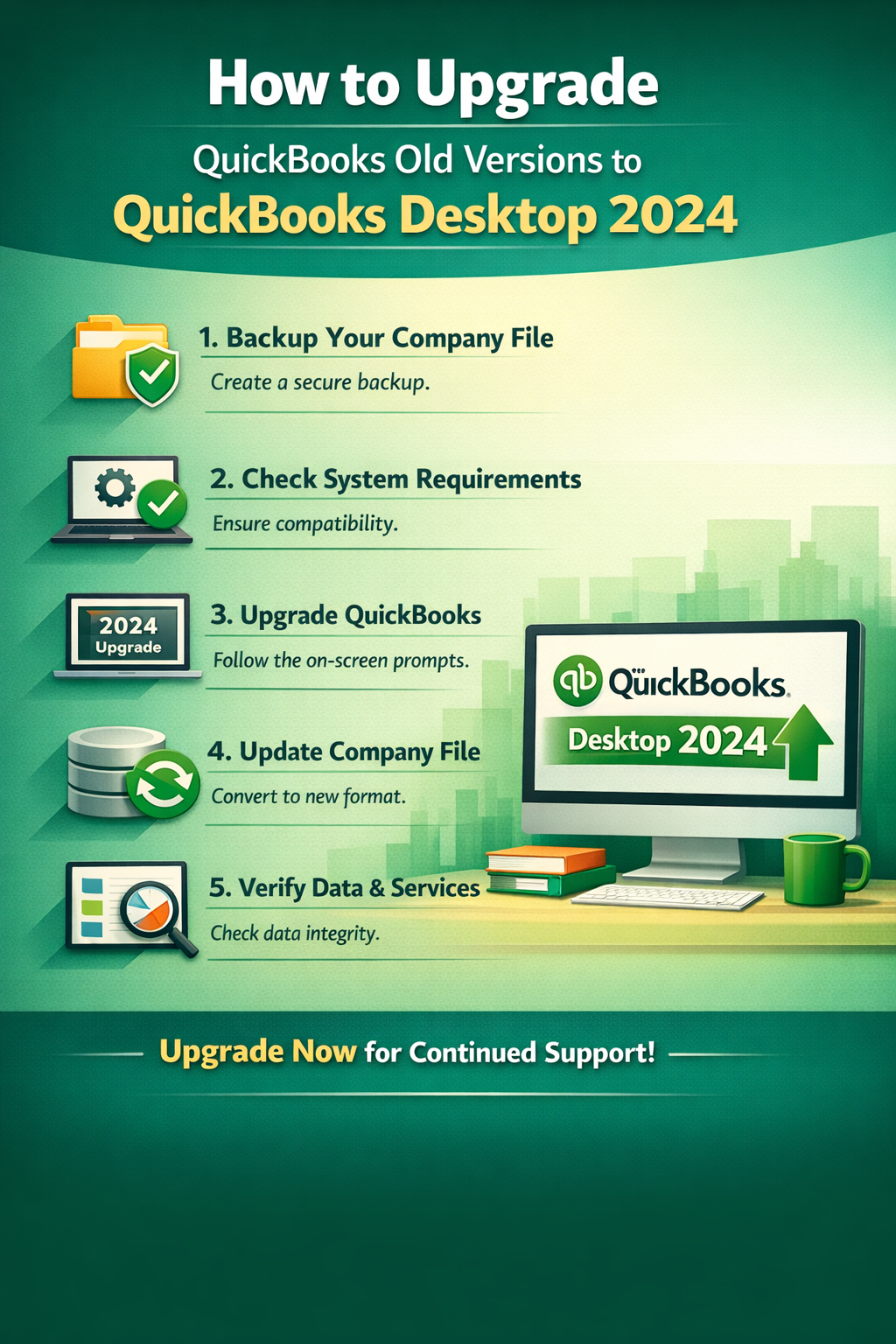 Before upgrading, create a full backup of your company file to prevent data loss.
1. Open QuickBooks Desktop
2. Go to File → Back Up Company → Create Local Backup
3. Choose a secure location (external drive or cloud storage)
4. Save the backup file and confirm completionCheck System Requirements
Make sure your computer meets the system requirements for QuickBooks Desktop 2024.
1. Use a supported Windows version (Windows 10 or Windows 11)
2. Ensure sufficient RAM, disk space, and processing power
3. Update Windows to the latest versionUpgrade QuickBooks Desktop
Upgrade your QuickBooks software using the built-in upgrade option.
1. Open QuickBooks Desktop
2. Click Help → Upgrade QuickBooks
3. Select Upgrade Now
4. Choose whether to keep your old version installed
5. Follow on-screen instructions to complete installationUpdate Your Company File
After installing QuickBooks Desktop 2024, your company file will be upgraded automatically.
1. Open QuickBooks Desktop 2024
2. Select your company file
3. Allow QuickBooks to update the file format
4. Do not interrupt the process
5. Once updated, the company file cannot be opened in older QuickBooks versions.Verify Data and Services
Confirm that everything works correctly after the upgrade.
1. Review company data and reports
2. Check payroll, bank feeds, and payment services
3. Verify custom templates and settingsAdditional Tips
1. Keep multiple backup copies before upgrading
2. Perform the upgrade during non-business hours
3. Test the upgrade on a copy of your company file if possible
Tools
- Tools Used to Upgrade QuickBooks to Desktop 2024
The following tools are required or recommended to complete the QuickBooks Desktop upgrade process successfully.
Required Tools
1. QuickBooks Desktop Upgrade Tool
Used to download, install, and upgrade your existing QuickBooks Desktop version to QuickBooks Desktop 2024.
2. QuickBooks Desktop Discovery Hub
Helps identify your current QuickBooks version and provides direct upgrade options from within the software.
Backup & File Management Tools
1. QuickBooks Backup Utility
Built-in feature used to create local backups of your company file before upgrading.
2. File Explorer (Windows)
Used to locate, store, and verify backup files (.QBB) and company files (.QBW).
System & Installation Tools
1. Windows Installer
Required to install QuickBooks Desktop 2024 on your computer.
2. Stable Internet Connection
Needed to download the installation files and activate QuickBooks Desktop 2024.
Access & Security Tools
1. Administrator Account (Windows)
Required to authorize installation and software changes.
2. Antivirus or Firewall Software
May need temporary adjustment to avoid installation interruptions.
Optional Support Tools
1. QuickBooks Desktop Manager
Assists with license management and reinstallation if needed.
2.QuickBooks Diagnostic Tool
Helps troubleshoot installation or upgrade errors.
Best Practice Tip
Keep all tools accessible and updated before starting the upgrade to reduce delays and prevent installation issues.
Materials
- Materials Required for Upgrading QuickBooks to Desktop 2024
To complete the upgrade process smoothly, make sure you have the following materials ready before starting.
Required Materials
1. QuickBooks Desktop (older version installed)
2. QuickBooks Desktop 2024 license and product number
3. QuickBooks company file (.QBW)
4. Recent backup of the company file (.QBB)
Backup & Storage Materials.
1. External storage device (USB drive or external hard drive)
2. Secure cloud storage (Google Drive, OneDrive, or Dropbox)
3. Sufficient free disk space on your computer
System & Software Materials
1. Windows computer (Windows 10 or Windows 11 supported)
2. Stable internet connection
3. QuickBooks Desktop Upgrade Tool or Discovery Hub
4. Updated Windows operating system
Access & Security Materials
1. Administrator access to the computer
2. Admin user access in QuickBooks Desktop
3. Antivirus or security software (may need temporary pause during install)
Optional Support Materials
1. QuickBooks Desktop Manager
2. Upgrade checklist or written instructions
3. QuickBooks ProAdvisor or technical support contact
Best Practice Tip
Keep all materials—licenses, backups, and installers—organized in one secure folder before starting the upgrade. This helps prevent delays or activation issues.
Method 1: Upgrade Directly From Within QuickBooks
If you are on QuickBooks Desktop 2022 or 2023, you can upgrade from the screen prompts:
- Open QuickBooks Desktop.
- Open your company file.
- Go to Help → Upgrade QuickBooks.
- When prompted, click Upgrade Now.
- Choose whether to keep the old version on your computer (recommended as a backup).
- Select Let’s go to start the download and installation.
- Once complete, open QuickBooks Desktop 2024.
Method 2: Use the Discovery Hub
- In QuickBooks Desktop, click the Discovery Hub (next to your profile icon).
- Select Upgrade to QuickBooks Desktop 2024.
- Follow the on-screen instructions to upgrade.
- Confirm whether to keep your old version.
- Launch QuickBooks 2024 when installation completes.
Method 3: Use QuickBooks Desktop Manager
- Log in to your Intuit account to retrieve your QuickBooks license and product numbers.
- Open the QuickBooks Desktop Manager app (if already installed).
- Enter your license when prompted.
- Follow on-screen steps to download and install QuickBooks Desktop 2024.
This method is especially useful if the upgrade prompt doesn’t appear.
Read Also : How to Upgrade QuickBooks Desktop to QuickBooks 2023? (Old Versions)
Before You Upgrade — Important Preparations
1. Back Up Your Company Files
Before upgrading:
- Create a complete backup of all company files (.QBW, .QBB).
- Store backups externally (cloud storage or physical drives).
This ensures you can recover data if something goes wrong during the upgrade.
2. Check System Requirements
QuickBooks Desktop 2024 has specific system requirements. Ensure you run a supported version of Windows (Windows 10, 11, or newer) and meet the hardware standards recommended by Intuit.
3. Understand Data Conversion
When you open your company file in QuickBooks Desktop 2024, the software updates the file format. Once updated:
- You cannot open the same file in older versions anymore.
- Always ensure you have a clean backup before conversion.
Read Also :- How to Upgrade QuickBooks Desktop Pro Plus, Premier Plus, or Enterprise?
What Happens if You Don’t Upgrade
If you stay on QuickBooks Desktop 2023 past May 31, 2026:
You Lose:
- Live customer support from Intuit
- Payroll updates and tax tables
- Online banking and bank feed downloads
- Payments and credit card processing
- Online services like QuickBooks Workforce
- Some integrated features such as multi-currency and reports tools
Your Software Might Still Open Files
Some users report that the base QuickBooks application still opens company files even after service discontinuation — but without any services or updates, your accounting data could be insecure and unsupported.
Should You Consider QuickBooks Online or Enterprise?
QuickBooks Online offers cloud-based advantages:
- Real-time data access from anywhere
- Automatic updates and backups
- Integrated collaboration
- Scales easily with growth
QuickBooks Desktop Enterprise is another alternative for larger businesses, offering advanced reporting, inventory, and multi-user capabilities.
Choose the version that best aligns with your business workflow.
Conclusion
Upgrading your QuickBooks Desktop is no longer optional — it’s essential if you want continued access to support and services. With QuickBooks Desktop 2023 support ending on May 31, 2026, now is the time to upgrade to QuickBooks Desktop 2024 for uninterrupted service, security, and improved performance.
Backing up protects your data from loss or corruption during the upgrade process. Once a file is upgraded, it cannot be opened in older QuickBooks versions.
QuickBooks creates a .QBB backup file, which contains all your company data.
Yes. You can save the backup file to a cloud storage service like Google Drive, OneDrive, or Dropbox after creating a local backup.
It’s recommended to:
1. Back up daily if you use QuickBooks regularly
2. Always back up before upgrades, updates, or major changes
No. Backing up only creates a copy of your data and does not modify or delete any existing information.
Skipping backups increases the risk of permanent data loss if the upgrade fails, the file becomes corrupted, or your system crashes.
Yes. Backup files created in older versions can be restored in QuickBooks Desktop 2024 during or after the upgrade.