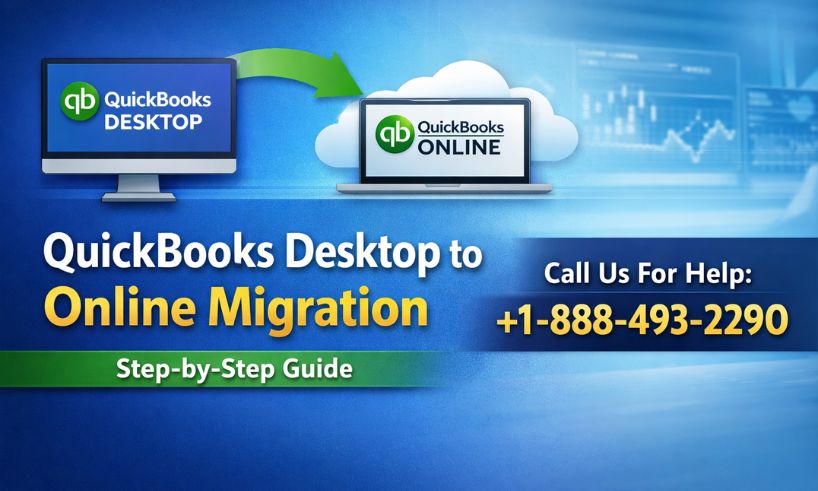
QuickBooks, developed by Intuit, has been a trusted accounting solution for businesses of every size. As cloud technology continues to evolve, many companies are now choosing to migrate from QuickBooks Desktop to QuickBooks Online for greater flexibility, accessibility, and efficiency.
Moving to QuickBooks Online allows you to manage your finances from anywhere, collaborate in real time, and benefit from automatic updates and backups. However, to ensure a smooth transition, it is important to understand the migration process clearly.
This guide explains how to migrate QuickBooks Desktop to Online step by step, including preparation tips, common challenges, and best practices to help you avoid data loss or errors.
Why Migrate to QuickBooks Online
QuickBooks Online offers several advantages over Desktop versions.
Anywhere Access
Access your financial data anytime from any device with an internet connection.
Real Time Collaboration
Share your books instantly with accountants or team members for faster decision making.
Automatic Updates and Backups
QuickBooks Online updates automatically and backs up your data, reducing maintenance and improving security.
Cloud Based Convenience
No installations, no servers, and no manual backups required.
These benefits make QuickBooks Online an ideal choice for modern businesses.
Preparing for QuickBooks Desktop to Online Migration
Before starting your migration, take time to prepare your data properly.
Back Up Your Company File
Always create a full backup of your QuickBooks Desktop company file to prevent data loss.
Update QuickBooks Desktop
Make sure you are using the latest version of QuickBooks Desktop for compatibility.
Review and Clean Your Data
Remove unused customers, vendors, and accounts to improve migration performance.
Reconcile Accounts
Reconcile bank and credit card accounts to avoid balance discrepancies later.
Confirm Admin Access
You must be logged in as Admin in both QuickBooks Desktop and QuickBooks Online.
How to Upgrade QuickBooks Desktop 2021 to 2024
If you are using an older version such as QuickBooks Desktop 2021, upgrading to a newer version before migration is recommended.
Download the latest QuickBooks Desktop installer from Intuit
Install the update
Open your company file and allow QuickBooks to upgrade it automatically
Once updated, you can proceed with migration.
Step by Step Guide to Migrate QuickBooks Desktop to Online
Follow these steps carefully for a successful conversion.
Step 1 Evaluate Your Data
Review your Desktop file for errors or inconsistencies. Run Verify Data and fix any issues.
Step 2 Choose the Right QuickBooks Online Plan
Select a subscription based on your business needs such as number of users, inventory, or payroll.
Step 3 Set Up Your QuickBooks Online Account
Create your QuickBooks Online account and enter company information, chart of accounts, and preferences.
Step 4 Export Data from QuickBooks Desktop
Open QuickBooks Desktop
Go to Company
Select Move to QuickBooks Online
Sign in to your Intuit account
Follow on screen instructions
QuickBooks will upload your file automatically.
Step 5 Convert and Import Your Data
QuickBooks converts your Desktop data into Online format and imports it into your QuickBooks Online account.
This process may take from minutes to several hours depending on file size.
Step 6 Review Imported Data
After migration completes:
Compare trial balance reports
Verify customer and vendor lists
Check account balances
Review invoices and bills
Fix any differences immediately.
Step 7 Customize Settings
Reconfigure preferences such as:
Invoices
Bank feeds
Reports
Taxes
Payroll
Customize QuickBooks Online to match your workflow.
Common Migration Challenges and Solutions
Data Compatibility Issues
Some elements do not migrate perfectly. Manual adjustments may be required.
Missing Payroll Information
Payroll settings and direct deposit details must be recreated.
User Training
QuickBooks Online works differently than Desktop. Provide training for your team.
Large File Errors
Large or complex files may require professional assistance.
Best Practices for a Smooth Migration
Migrate during low activity hours
Stop entering transactions during conversion
Save key reports before migration
Reconnect bank feeds afterward
Verify balances immediately
Keep Desktop as reference until fully satisfied
These steps prevent costly cleanup later.
Should You Start Fresh Instead of Migrating
Some businesses choose to start a new QuickBooks Online company and import only lists and opening balances.
This option works well for very old or corrupted files and improves performance.
Read Also :- How to Upgrade QuickBooks Old Versions to QuickBooks Desktop 2024
Final Thoughts
Migrating from QuickBooks Desktop to QuickBooks Online is a powerful step toward modernizing your accounting system. With cloud access, automation, and collaboration features, QuickBooks Online helps businesses operate more efficiently.
Proper preparation and careful review are the keys to success. When done correctly, the transition is smooth and rewarding.
If you need expert help with your QuickBooks Desktop to Online migration, professional support can save time and prevent errors.
Frequently Asked Questions
QuickBooks Online offers enhanced accessibility, real-time collaboration, automatic updates, and seamless integration with third-party applications, making it a more versatile and efficient accounting solution for modern businesses.
While most data can be transferred, there may be certain elements that require manual adjustment or reconciliation. It’s essential to review and reconcile the data after migration to ensure accuracy and consistency.
The time required to migrate from QuickBooks Desktop to QuickBooks Online varies depending on factors such as the size of your data file, the complexity of your accounting setup, and the extent of customization needed. In general, the migration process can take anywhere from a few hours to a few days.
Yes, QuickBooks Online operates on a subscription-based model, and you will need to purchase a new subscription plan based on your business needs and requirements.
While you can continue to use QuickBooks Desktop for a limited period after migrating to QuickBooks Online, it’s recommended to transition fully to QuickBooks Online to take advantage of its features and benefits.
Yes, QuickBooks Desktop Support professionals are available to provide assistance and guidance throughout the migration process. You can contact them via phone at +1-855-838-5977 for prompt assistance with any technical issues or challenges.
Your QuickBooks Desktop data remains intact even after migrating to QuickBooks Online. However, it’s essential to create a backup of your QuickBooks Desktop data before initiating the migration process to safeguard against any potential data loss or corruption.
Yes, QuickBooks Online allows you to customize various settings and preferences according to your business requirements. You can configure features such as invoicing, banking, and reporting to optimize workflow efficiency.
Providing comprehensive training and ongoing support to your team members is crucial for ensuring a smooth transition to QuickBooks Online. Invest time and resources in training sessions and provide assistance to address any questions or concerns that may arise.
If you encounter any technical issues or challenges during the migration process, you can reach out to QuickBooks Desktop Support at +1-855-838-5977 for prompt assistance and resolution. Their expertise can help minimize downtime and ensure a successful migration.